
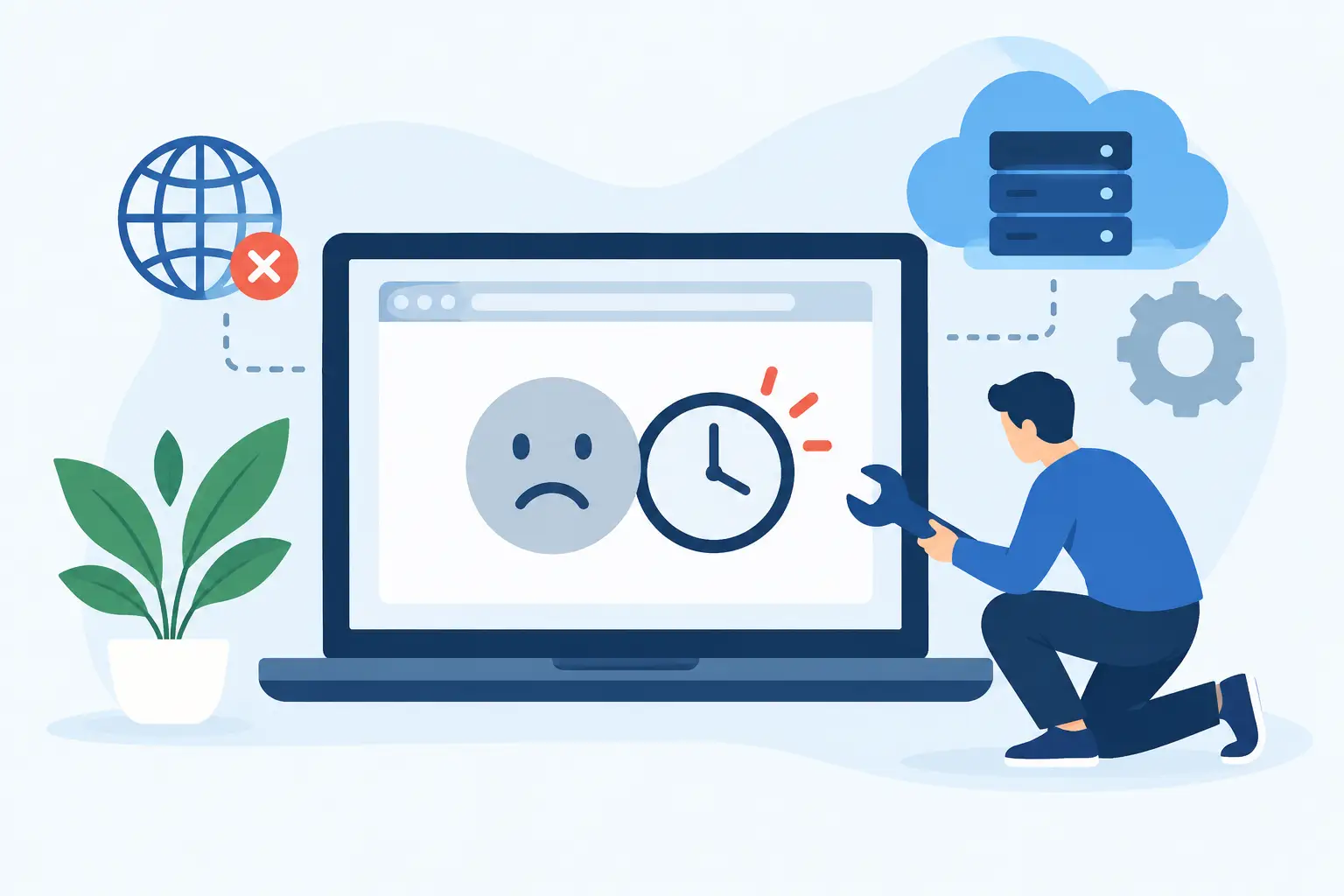
A visitor has found your business, clicked your advert or tapped your Instagram bio, then your website keeps loading until it shows an error. That is more than a technical annoyance. It can mean a lost order, enquiry or booking. Understanding website timeout causes helps you respond quickly, protect customer confidence and prevent the same issue from returning.
A timeout does not always mean your whole website is down. It means one part of the journey took longer than the browser, server or network was prepared to wait. The key is finding which part is slow before making changes that do not address the real problem.
What a website timeout actually means
A website request passes through several layers. A visitor’s browser asks for your domain, DNS directs that request to the right server, the server runs your website application, the application may query a database or call another service, and then the server sends a response back.
A timeout happens when that response does not arrive within the allowed time. You may see messages such as 504 Gateway Timeout, 408 Request Timeout, ERR_CONNECTION_TIMED_OUT or simply a browser page that never finishes loading. The wording matters, but it is not the full diagnosis.
For example, a 504 error often means a gateway or proxy waited too long for the application server. A connection timeout can mean the server cannot be reached at all. If only one visitor has the problem, their network, browser extension or local DNS cache may be responsible. If customers in different locations see it too, investigate the website and hosting environment first.
Website timeout causes: find the failing layer
Your hosting account has run short of resources
Shared hosting is affordable and an excellent starting point for many Nigerian businesses, blogs and brochure websites. However, every account has practical limits around CPU, memory, processes, concurrent connections and disk activity. When a site receives a sudden rush of visitors, runs inefficient code or handles several demanding tasks at once, requests can queue up until they time out.
This is especially common during a product launch, a popular social media post, a seasonal promotion or an email campaign. WooCommerce stores can also experience pressure when multiple shoppers are checking stock, applying coupons and reaching checkout at the same time.
Check your hosting control panel for resource usage around the time the issue occurred. Consistently high CPU or memory use calls for optimisation, an upgraded plan or both. Increasing limits may provide welcome headroom, but it will not solve a poorly configured plugin or slow database query on its own.
Slow WordPress plugins, themes or custom code
WordPress is flexible because plugins can add payments, bookings, forms, security scans, page builders and more. The trade-off is that each extra feature can add database queries, scripts and external calls. One outdated or badly coded plugin can make a previously quick site painfully slow.
Start with recent changes. Did the timeout begin after installing a plugin, updating a theme, changing a payment gateway or adding custom code? Create a backup, then test by temporarily disabling the most likely additions one at a time. Do this during a quiet period or in a staging environment where possible, particularly for a live shop.
Do not remove useful plugins simply because you have a long list. A well-maintained plugin with a clear purpose may be worth keeping. Focus on duplication, abandoned software and features that load on every page despite being needed only in one area of the site.
Database queries that take too long
Your database stores product details, user accounts, posts, orders, form submissions and site settings. As the website grows, database tables can become cluttered with post revisions, expired transients, old sessions and data left behind by removed plugins. A query that once completed quickly can begin delaying every visitor request.
Slow databases are often most visible in the WordPress dashboard, search pages, membership areas and checkout. Review scheduled jobs, clean unnecessary data carefully and ensure tables are optimised through a trusted maintenance process. Before making database changes, confirm that a current backup is available.
For larger stores and busy membership websites, object caching can make a meaningful difference by storing frequently requested data in memory instead of rebuilding it repeatedly. Redis object caching is useful in the right setup, but it should be configured correctly and monitored rather than treated as a one-click cure.
External services are holding up the page
A website can depend on services outside your hosting account: payment processors, map widgets, analytics, live chat, email delivery, stock systems, API integrations and third-party fonts. If one of these services responds slowly, your page may wait for it before completing.
This can be difficult to spot because your server itself may look healthy. Review error logs and application logs for failed API requests or long response times. If an external feature is non-essential, configure the site so that the rest of the page can still load when that service is delayed. A live-chat widget should not prevent a customer from viewing your contact details or completing an order.
DNS, SSL and network configuration errors
Sometimes the website files are fine, but visitors are being directed incorrectly. Wrong DNS records, incomplete domain propagation, conflicting IPv4 and IPv6 records, firewall rules or an expired SSL certificate can interrupt the connection before the page loads.
This often happens after a migration, domain transfer or server change. Confirm that your domain’s A record or nameservers point to the intended hosting service and that there are no old records creating confusion. DNS changes can take time to propagate, so avoid changing records repeatedly while waiting for updates to spread.
An SSL problem does not always look like a timeout, yet an incorrect certificate setup can disrupt secure connections and integrations. Check that the certificate covers the correct domain version, including www where required, and that forced HTTPS redirects are not looping.
Traffic spikes, bots and malicious activity
More traffic is usually good news, but not all traffic is valuable. Search crawlers, aggressive bots, password attacks and malicious requests can consume the same resources your genuine customers need. A small business website does not need enterprise-scale traffic to feel the effect if requests are poorly behaved or target expensive pages.
Security tools, a web application firewall and rate limiting can reduce this pressure. Malware also deserves attention: compromised files may send spam, create hidden processes or redirect visitors, all of which can slow the account. Keep WordPress core, themes and plugins updated, use strong unique passwords and remove inactive accounts. Malware protection such as Imunify360 adds another useful layer, but good account hygiene remains essential.
A practical way to diagnose a timeout
When an error appears, record the exact time, affected URL and message before refreshing repeatedly. Then test the site from another connection, such as mobile data, and ask a colleague or customer in a different location to try it. This separates a local connection issue from a wider outage.
Next, check whether the homepage, dashboard, checkout and other pages all fail. If one page fails, the cause may be a particular plugin, query or integration. If every page fails, examine server status, resource usage, DNS and firewall activity. Server error logs are particularly valuable because they can reveal memory exhaustion, blocked requests, PHP errors and processes that reached their execution limit.
Avoid increasing PHP time limits immediately. A higher limit may stop an error message while making visitors wait even longer for a broken process. Identify what is consuming the time first, then apply the right fix.
Reduce future timeouts before they cost sales
Prevention is usually cheaper than emergency repairs. Keep a tested backup schedule, update software in a controlled way and monitor uptime so you know about problems before customers report them. Use page caching for public pages, optimise large images and choose a hosting plan that matches your real traffic, application and storage needs.
For WordPress sites, LiteSpeed Enterprise and properly configured caching can reduce the work required for each visit. NVMe storage can also improve file and database activity, especially where a site handles frequent requests. These features help most when they are paired with sensible plugin choices, clean code and enough account resources.
If your website is growing beyond a simple brochure site, review your hosting before a campaign or busy sales period. GiddyHost can help businesses assess whether a move to a higher hosting tier, managed WordPress hosting or cloud hosting better fits their workload, without forcing them to pay for capacity they do not yet need.
A timeout is a useful warning signal: somewhere, a customer request is waiting too long. Treat it as a chance to improve the path between interest and action, so the next visitor reaches your page, form or checkout when they are ready to buy.


